
- → Introduction
- 1. NomaSign Account
- 2. Integration Account
- 3. Signing Template
- 4. Refresh Token
- 5. Clone Example App
- 6. Webhooks
Creating a Refresh Token & Webhook Secret
This is where your app gets its keys. You'll generate two values and you'll only see them once, so have your secrets manager open before you click the button.
The refresh token is how your app proves who it is. It never calls the API itself. Your app swaps it for a short-lived access token whenever it needs one, and each swap also returns a new refresh token that replaces the old one. The webhook secret works the other way round. When NomaSign posts an event to your webhook URL, it signs the message with this secret, and your app checks that signature before trusting anything in it. If the check fails, throw the request away.
Generate the credentials your application needs. If you haven't created and activated an integration entry yet, complete those actions in Step 2 first.
1. Generate Tokens
Click Generate Tokens. You'll receive:
- Refresh Token: used to obtain short-lived access tokens
- Webhook Secret: used to verify webhook HMAC signatures
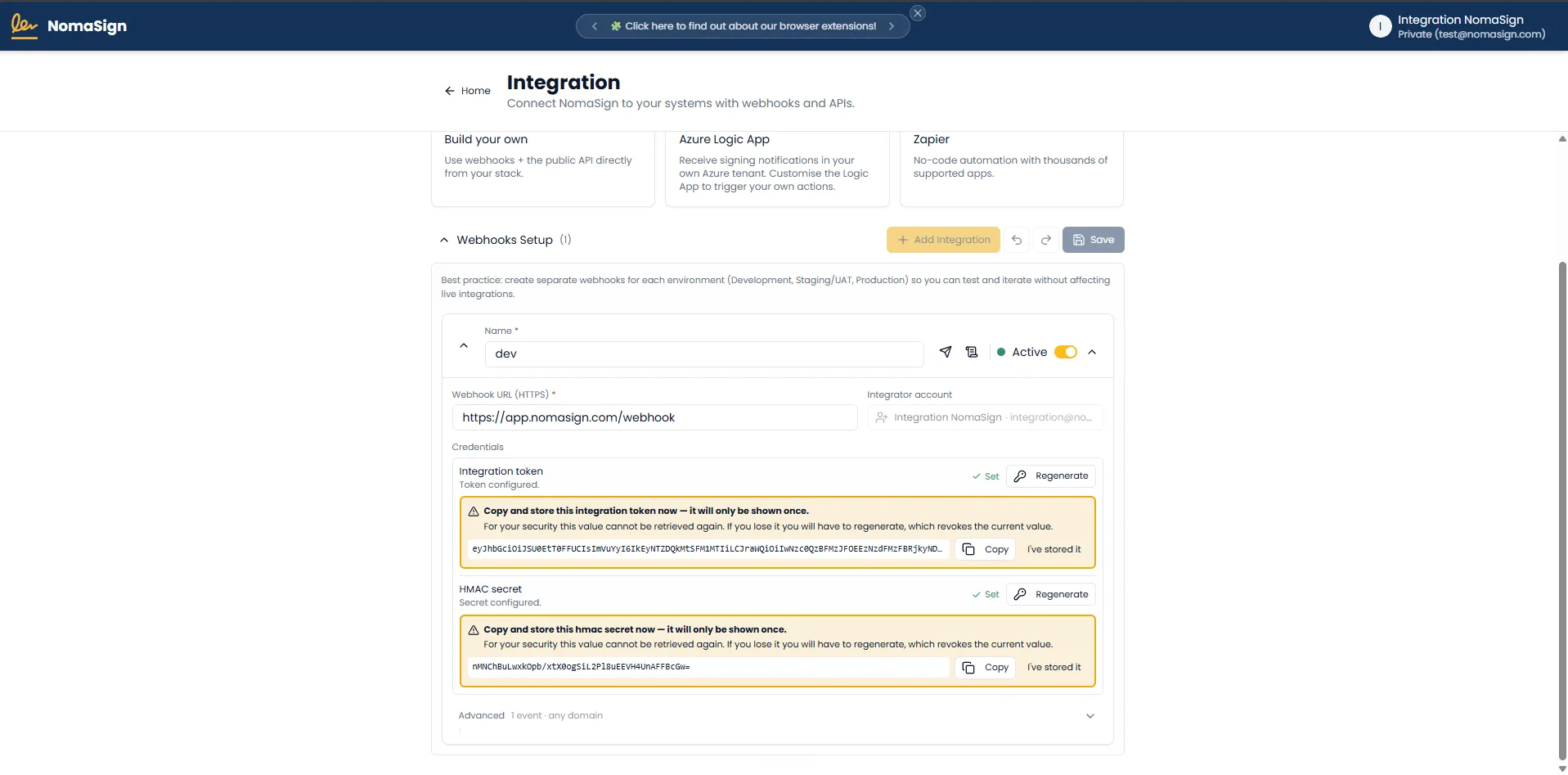
POST /connect/token returns a new refresh token. Store it in your secrets manager in place of the old one. The previous token keeps working for 5 minutes, so processes that refresh at the same moment all succeed. Using an older token after that is treated as a leaked token: all tokens of the integration are revoked, and you generate new ones on this page.Security Checklist (for production)
- Refresh token stored in a secrets manager (Azure Key Vault, AWS Secrets Manager, etc.) and replaced with the new one after every exchange
- Webhook secret stored alongside the refresh token
- Neither value exposed to frontend/client-side code
- Neither value logged, emailed, or pasted into chat/tickets